Upload an image directly from your device using the Upload Image button. You can also drag and drop an image into the tool for quick access. For cloud files, import images directly from Google Drive or Dropbox.
Custom Dimensions
Set your own image width and height instead of being limited to preset sizes. Custom dimensions can be entered in pixels, centimeters, millimeters, or inches, making the tool useful for both digital and physical-size requirements.
Ready-Made Image Size Presets
When you already know the required size, use a predefined dimension instead of entering the width and height manually. Select a size from the available list and resize the image directly.
Resize Types
Choose Stretchy when you want the image to fill the selected dimensions, Crop Fit when you want the image to retain its proportions while filling the frame, or Fixed when you want the complete image preserved with background padding.
Flexible Scaling and Aspect Ratio Control
For Stretchy and Crop Fit, adjust the resize scale between 50% and 200% using the slider. When entering custom dimensions, you can also lock or unlock the aspect ratio depending on whether the original proportions need to be maintained.
Multiple Output Formats
Choose PNG, WebP, JPG, JPEG, or GIF as your output format. Select the format that best fits your quality and file-size needs. This makes it easy to use the resized image across different platforms and applications.
Steps to Resize an Image
1 . Upload your image to resize using the options.
2 . Choose custom or predefined dimensions.
3 . Choose the measurement unit if using custom.
4 . Select the Stretchy, Crop Fit or Fixed resize type to fit the image.
5 . Select the output format.
6 . Click 'Download' to save the resized image to your device.
Other useful information
Explore our visual guides and infographics
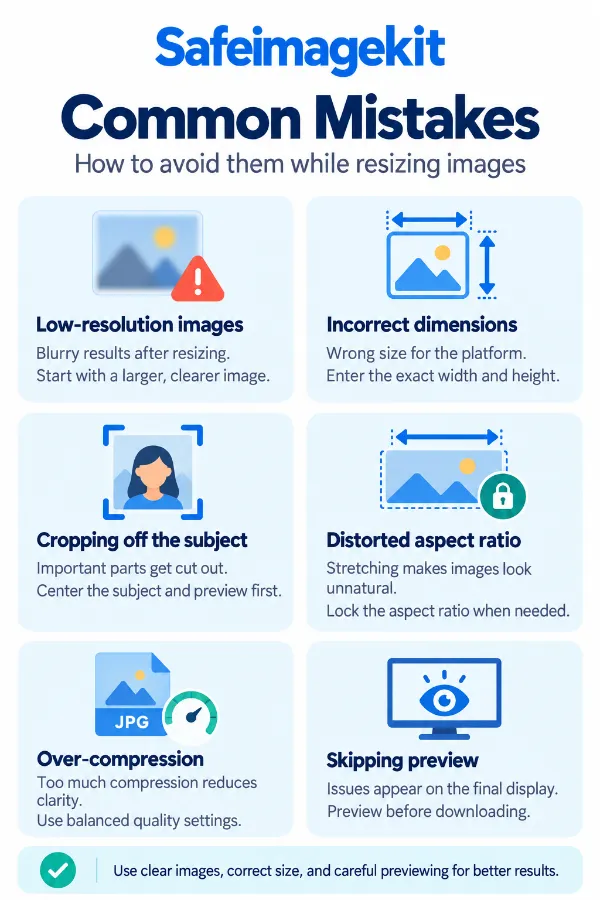
The infographic highlights common resizing errors that can affect image proportions, dimensions, and overall quality.
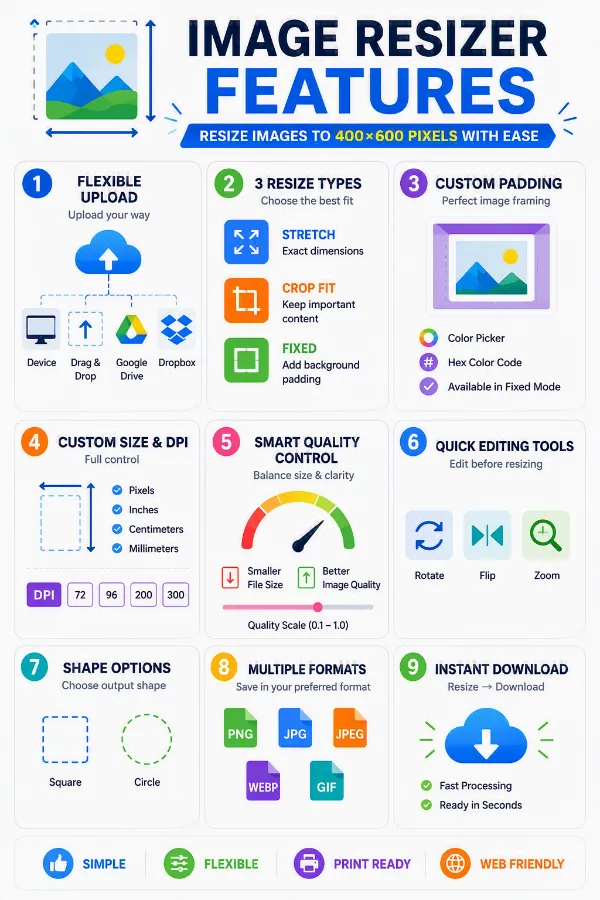
The infographic highlights the main features available for changing image dimensions and adjusting resize settings.
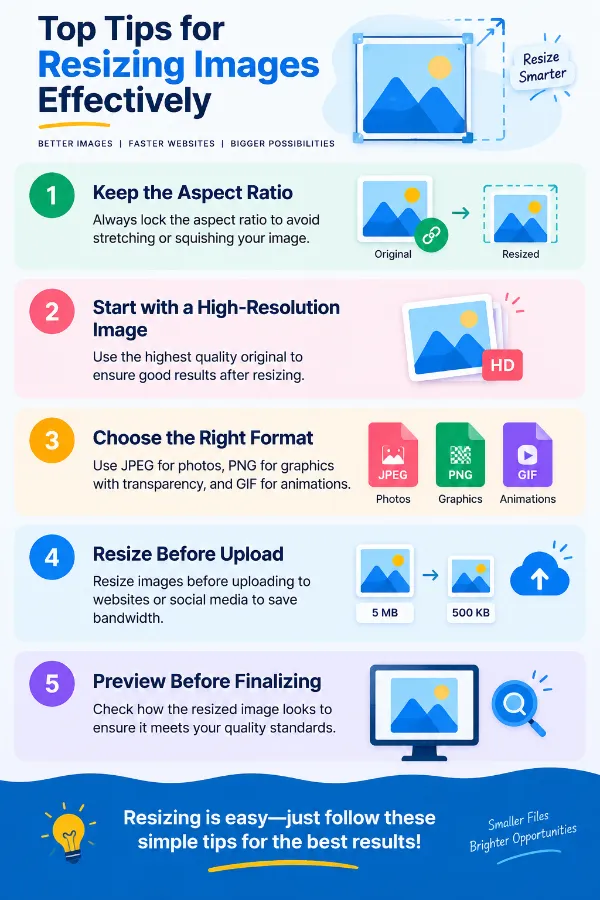
The infographic shares simple tips for adjusting image size while maintaining suitable proportions and quality.
×
Frequently Asked Questions
What is an online image resizer?
An online image resizer changes the width and height of an image without requiring traditional desktop editing software. You can enter custom dimensions or select a predefined size and then download the resized image.
Can I enter my own image width and height?
Yes. Select Custom and enter the required width and height. You can choose pixels, centimeters, millimeters, or inches as the measurement unit.
What is the difference between custom and predefined dimensions?
Custom lets you enter your exact width and height. Predefined lets you select an available dimension from the list without manually entering the measurements.
Should I lock the aspect ratio when resizing an image?
Lock the aspect ratio when you want to preserve the image's original proportions. Unlock it when the destination requires a specific width and height, even if that changes the original proportion.
What happens if I unlock the aspect ratio?
You can enter width and height independently. This gives you greater control over the final dimensions, but if the new proportions differ from the original image, the image may not retain its original shape depending on the selected resize method.
When should I use Fixed instead of Crop Fit?
Use Fixed when the entire image needs to remain visible. It is particularly useful when cropping would remove important parts of a photograph, document, logo, or graphic.
Can I resize an image without cropping it?
Yes, depending on the required dimensions, use Fixed to keep the complete image visible with background padding. Crop Fit, on the other hand, may remove parts of the image to fill the target dimensions.
Can I resize an image without stretching it?
Yes. Use Crop Fit or Fixed when maintaining the original proportions is more important than filling every part of the target dimensions.
Why would I use a 50% resize scale?
A 50% scale can be useful when you want to make the image substantially smaller while working with the resizing controls. The final result still depends on the selected dimensions and resize method.
Why would I increase the resize scale above 100%?
A scale above 100% can be useful when you need the image to occupy more of the available resizing area. Enlargement does not create genuine detail that was absent from a low-resolution original, so very large increases may reduce perceived sharpness.
Can I resize an image for a Discord profile picture?
Yes. You can use the available dimensions or enter custom dimensions for a Discord profile picture. A 128×128 pixel image is a commonly used size for a Discord profile picture.
What size should I use for a Discord PFP?
A Discord profile picture is commonly prepared as a 128×128 pixel square image. Because platform specifications can change, check Discord's current requirements and then enter the required dimensions using the Custom option or an appropriate preset.
Can I resize an image for a Discord banner?
Yes. Enter the required Discord banner dimensions using custom dimensions, or select a matching predefined size if available. Discord profile banners are commonly 600×240 pixels, giving them a 5:2 aspect ratio. Because banners use a different shape from profile pictures, choose the resize method carefully to avoid unwanted cropping.
Can I resize an image for a WhatsApp profile picture?
Yes. A WhatsApp profile image is commonly prepared as a 640×640 pixel square image, although smaller square images can also work. You can choose a suitable square dimension or enter the required dimensions manually using the Custom option.
Can I resize an image for an Instagram post without cropping?
You can use the image's target Instagram dimensions and choose a resize method based on your goal. For Instagram posts, 1080×1080 pixels is a common square size, while 1080×1350 pixels is commonly used for portrait posts. Fixed can keep the complete image visible with padding, while Crop Fit can remove areas that fall outside the target frame.
Can I use this as a SoundCloud image resizer?
Yes. If you know the required SoundCloud image dimensions, enter them under Custom or select a matching preset when available. SoundCloud artwork is commonly prepared as a square 3000×3000 pixel image, which provides a high-resolution format for cover artwork. Check SoundCloud's current image requirements before preparing an image for publication.
Can I resize an image for LinkedIn?
Yes. Enter the required LinkedIn image dimensions using Custom or select a suitable predefined size. For LinkedIn posts, 1200×627 pixels is a commonly used landscape size, while other image areas may require different dimensions. Always use the specifications for the specific LinkedIn image type.
Can I change JPG to PNG while resizing?
Yes. After resizing, you can select PNG, WebP, JPG, JPEG, or GIF as the output format before downloading the result.
Will changing the image format reduce the file size?
It can, but the result depends on the original image, output format, dimensions, and compression characteristics. Changing dimensions and format can affect the final file size differently for different images.
Is it safe to resize a private image with this tool?
The resizing operation is performed locally in your browser rather than requiring the image to be sent to a remote server. This is useful when working with personal photographs, confidential documents, private screenshots, or other sensitive images.
Can I resize a confidential document image without uploading it to a server?
The resizing operation is performed in the browser, so the image does not need to be transmitted to a remote server for the resizing process. If the file is subject to organizational privacy or security requirements, you should still follow those requirements.
Why does my resized image look different from the original?
The result depends on the selected dimensions and resize method. Stretchy can alter proportions, Crop Fit can remove parts of the image, and Fixed can introduce padding around the image.
Over 500k Users Rely on Our Image Editing Tools Monthly
Join a growing community of creators who trust safeimagekit.com for versatile image editing and processing solutions.
We appreciate your feedback and will use it to improve our services.
About The Author
RK Shree - A science enthusiast with a poetic flair, and possesses an insatiable desire to explore diverse fields seeking new knowledge and experiences. My work ethic is highly disciplined and dedicated. I take pleasure in pursuing creative endeavors that captivate me.